
From time to time - for the sake of speed and simplicity, usually for testing and or troubleshooting purposes - a need might arise to control the Windows (Defender) Firewall from a CLI (the following commands will most probably work both in PowerShell and Command shell, depending on your Windows version and - of course, with appropriate, Administrator rights, at least when it comes to turning it off and on again).
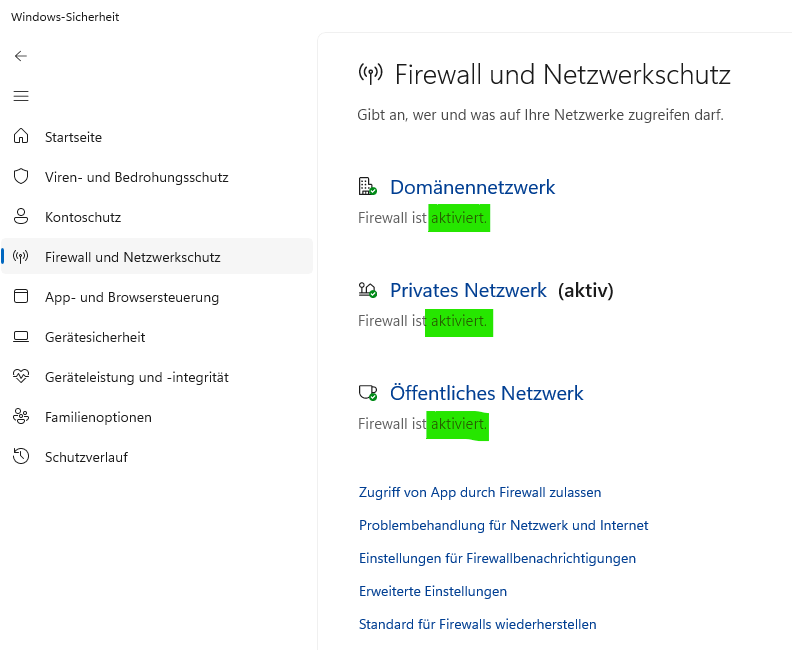
These are just about the same basic settings that can be accessed through the GUI (e.g. via "Settings" - "Network & internet" - "Advanced network settings" - "Windows Firewall" and / or by clicking on the "Windows Security" icon and choosing "Firewall & network protection") - pictured below (in German):
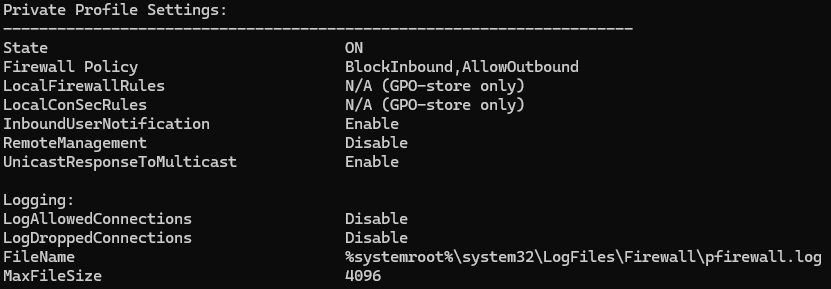
By using the status command you do actually also get some extended information hidden behind these 3 options reg. Domain, Private and Public networks (incl. logging-related settings and some other options hidden deeper in the GUI - as shown below, for a Private profile):
These are the commands, which may save you some time spent clicking:
- to check the status of Windows Firewall:
Netsh Advfirewall show allprofiles
- to turn it OFF:
NetSh Advfirewall set allprofiles state off
- to turn it back ON:
NetSh Advfirewall set allprofiles state on