
From time to time it's wise to perform a BIOS (Basic Input/Output System) update, as this can - among other benefits - bring:
- better hardware compatibility;
- more system stability;
- less power consumption;
- new security features / improvements;
- other fixes.
As sometimes (especially with older hardware, not having a dual BIOS motherboard, which automatically provides for a backup in such a case) things could get a bit tricky - or you could even end up with a bricked device, a few tips (steps) on how to do it safely can be found below:
- download the appropriate version of the file (usually packed within an .exe) from the vendor (or eventually directly from the BIOS manufacturer - usually a company like American Megatrends - AMI or Phoenix Technologies), check for a hash (mis)match, i.e. scan it with an AV solution;
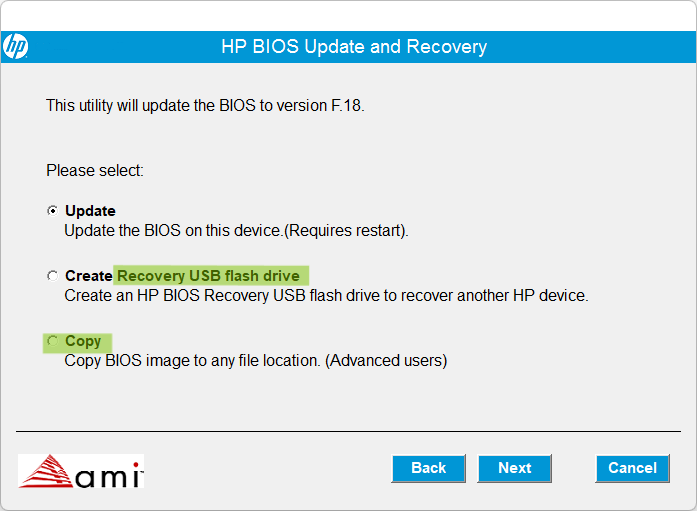
- [IMPORTANT] start the application and make sure to back the current version up first (by using the 3rd option):
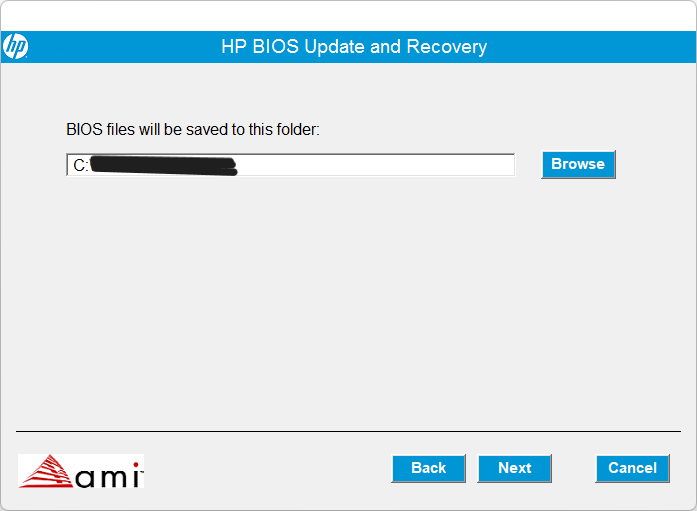
- choose an appropriate location for the file, click on "Next":
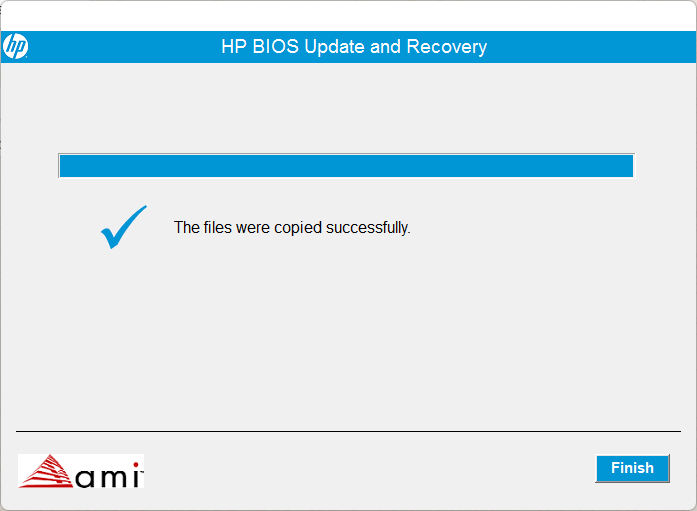
- continue with the rest of the procedure and click on "Finish";
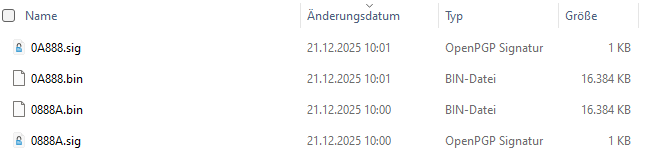
- (just in case) verify for the existence of backup files;
- [IMPORTANT] you should now save all your relevant work that (still) might be running, make sure that your computer is running on external power, re-run the application and start the actual update procedure (by choosing "Update" this time);
- at the end of the procedure, your computer should restart and you should see the BIOS blocks being written and checked (multiple passes are completely normal);
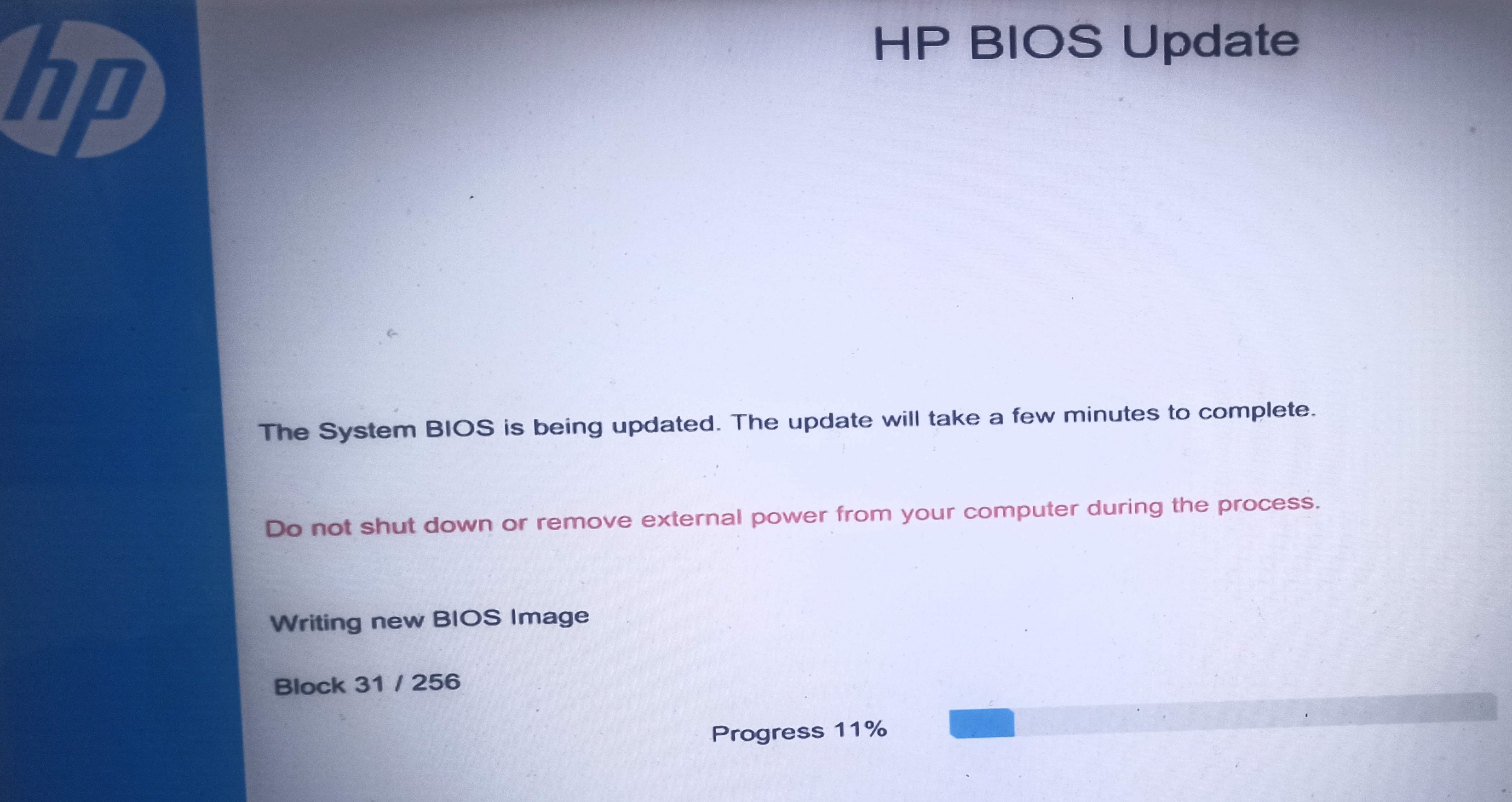
- after the procedure has ended and all the blocks written have been checked, your computer should restart and boot normally.